The iOS Driver Anywhere app now supports Tap to Pay, allowing drivers to collect contactless payments directly on their iPhone.
What is Tap to Pay?
Tap to Pay is a contactless payment technology that allows passengers to complete a transaction by holding a supported credit card, debit card, smartphone, or smartwatch near the driver’s iPhone.
This means drivers can accept contactless payments directly through their mobile device.
Requirements
Before a driver is able to use the Tap to Pay option, the following requirements must be met in the system:
- Payment processing must be enabled for the driver.
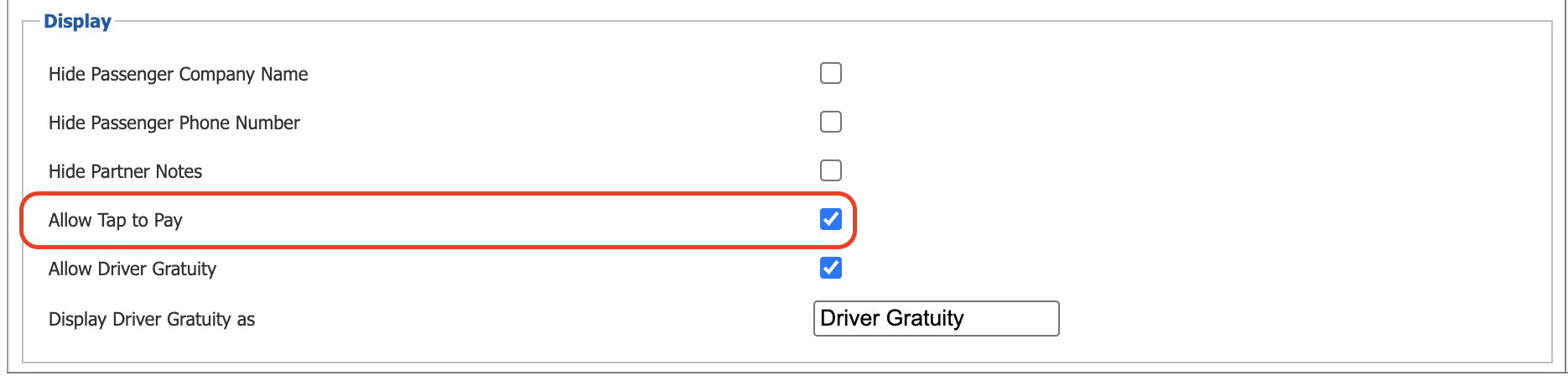
The driver must have permission to process payments in their Driver Profile, which is located under My Office > Company Resources > Drivers > DriverAnywhere Settings - Tap to Pay must be enabled by the operator.
In order to enable this setting, the operator would need to go to My Office > Company Preferences > DriverAnywhere - The latest version of DriverAnywhere for iOS must be installed on the drivers device.
Before using this feature, the drivers should make sure to update their app to the latest version.
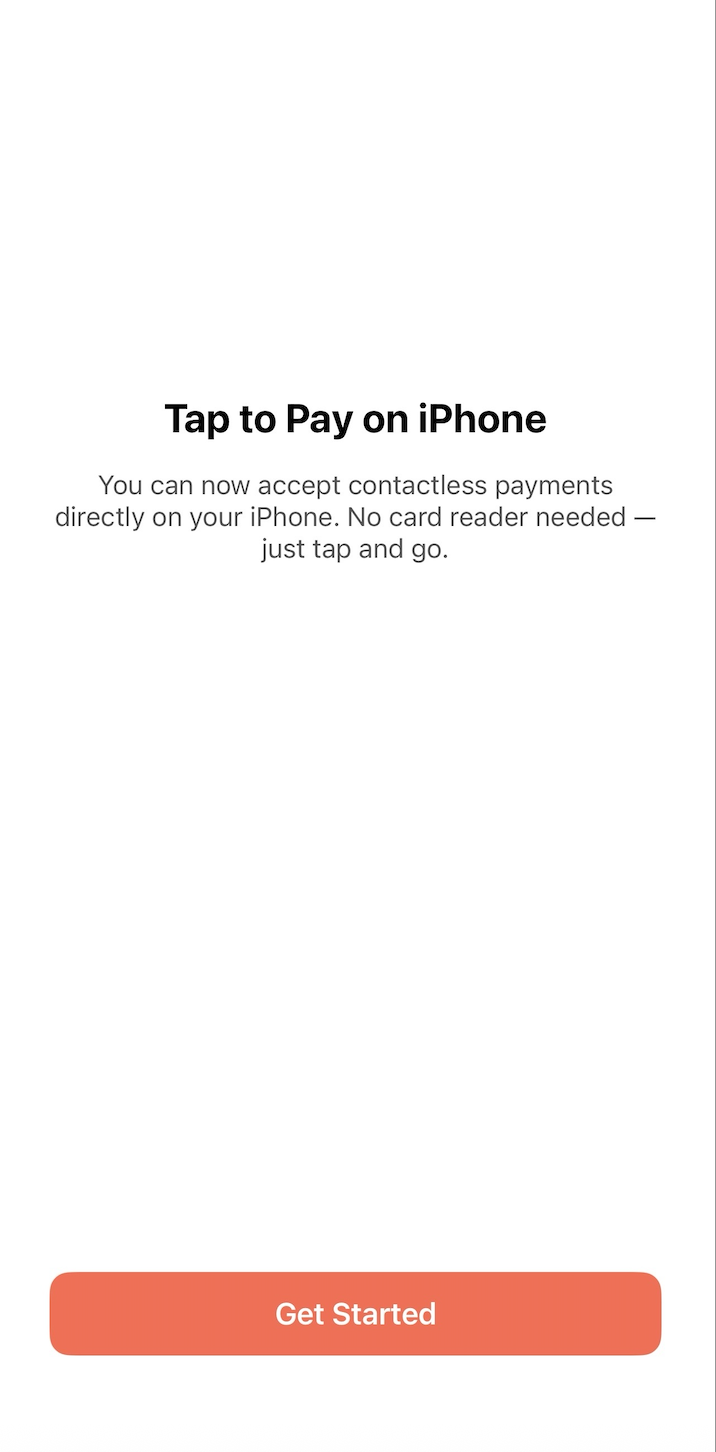
Getting Started
After updating to the latest version of Driver Anywhere, eligible drivers will see an in-app introduction informing them that Tap to Pay on iPhone is now available.
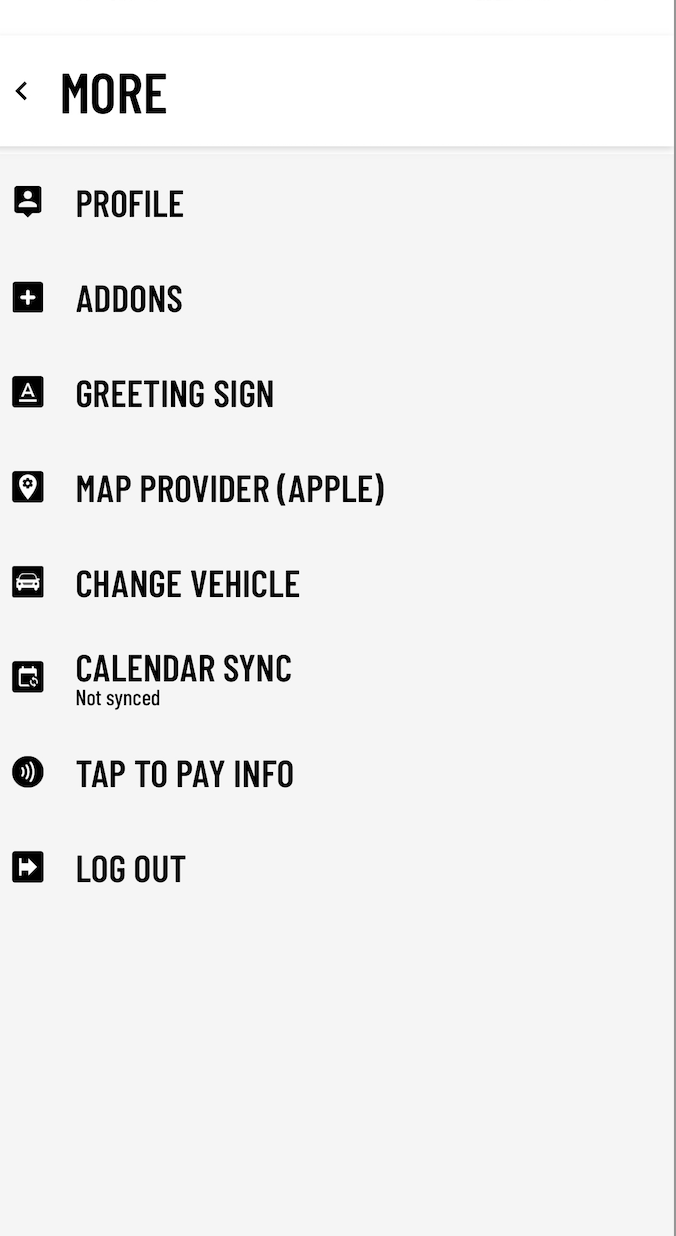
Tap to Pay in the App Menu
A dedicated Tap to Pay section is also available from the Driver Anywhere app menu. From here, drivers can access information and options related to the Tap to Pay feature.
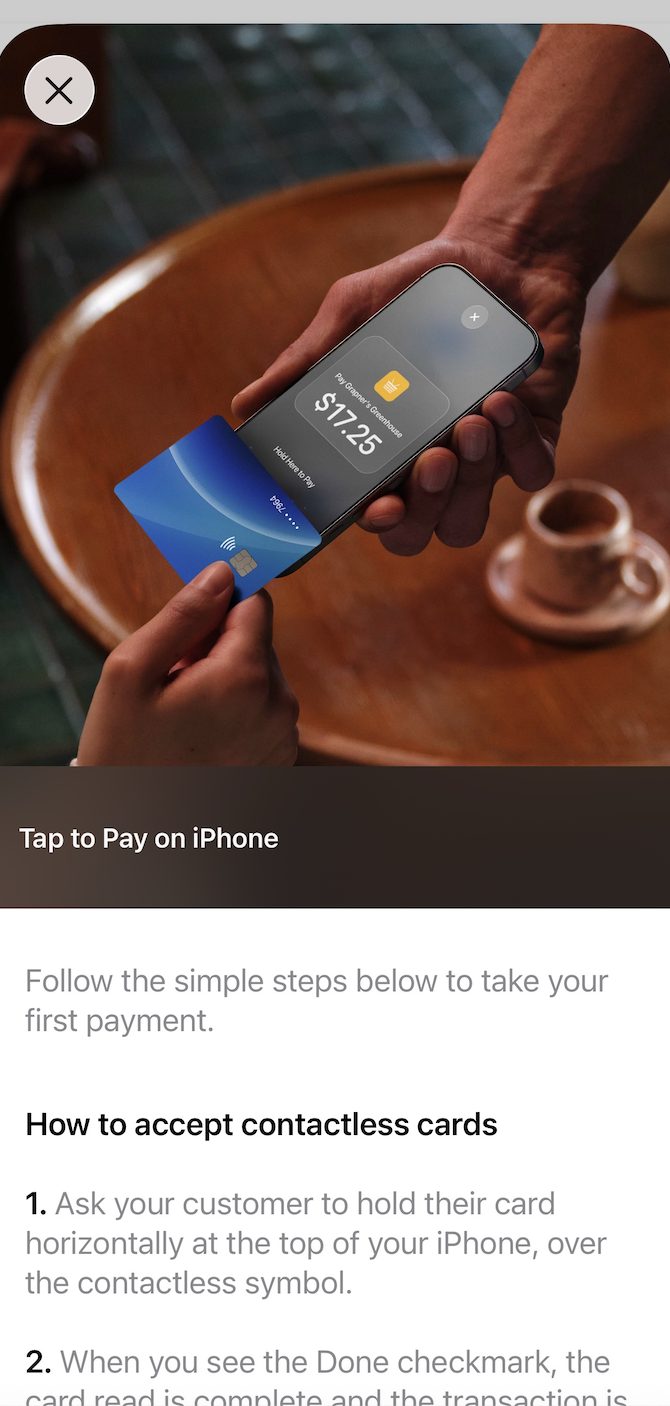
Accepting a Payment
When collecting payment from a passenger, the driver can use Tap to Pay to complete the transaction directly on their iPhone.
- Select Tap to Pay
Start the payment process and select Tap to Pay as the payment method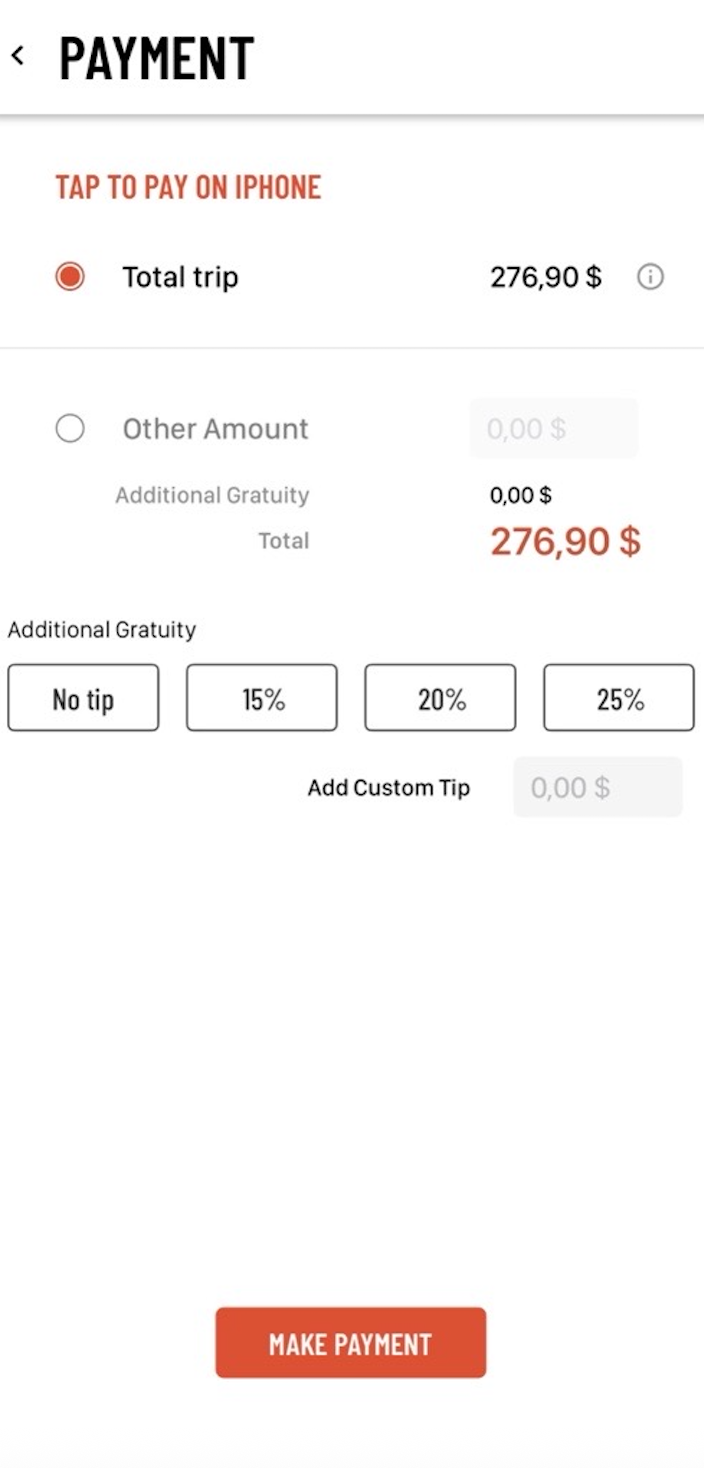
- Present the iPhone to the Passenger
The app will display the amount to be charged and prompt the passenger to present their contactless payment method.
The passenger should hold their card, smartphone or smartwatch near the indicated area on the driver's iPhone.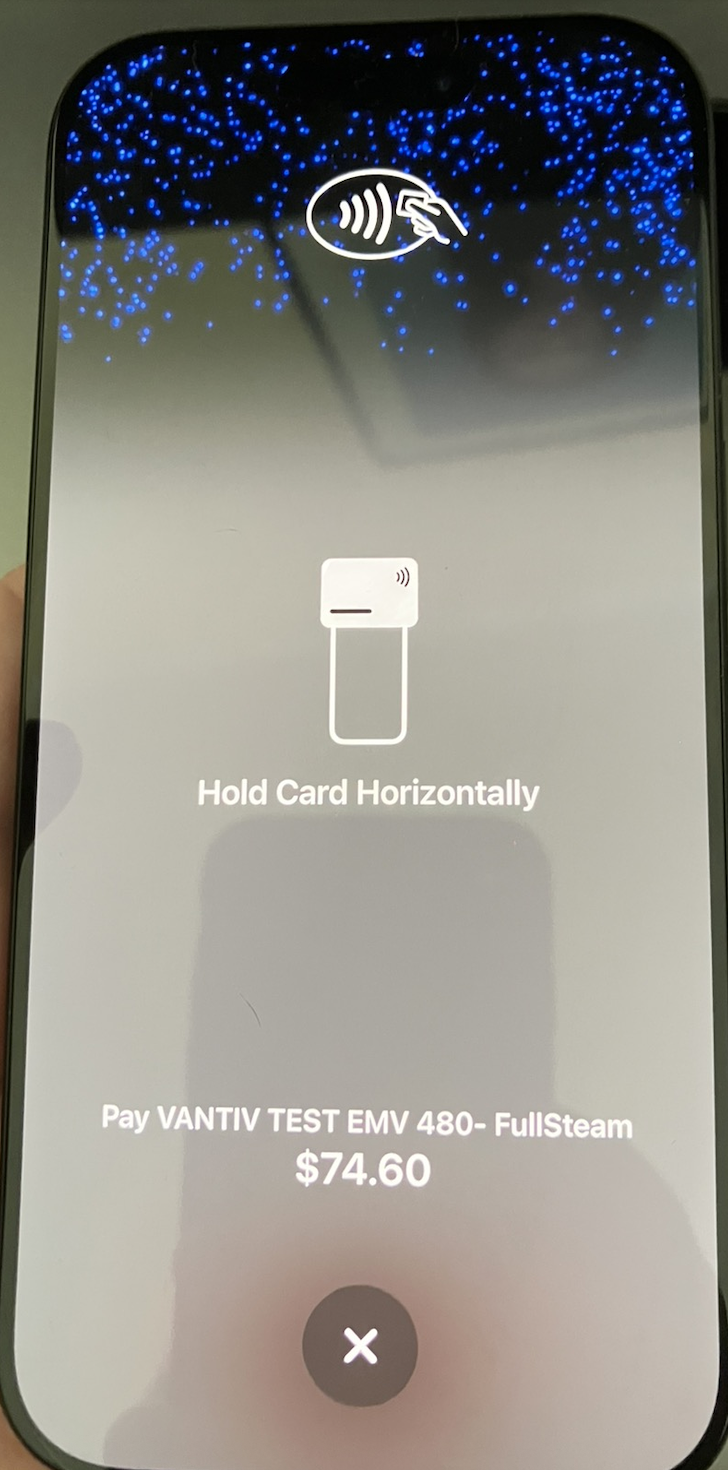
- Wait for Payment Confirmation.
Keep the Payment Method near the iPhone until the app confirms it has been successfully read. The payment will be processed automatically. - Confirm the Transaction
Once processing is complete, the DriverAnywhere app will display the transaction results.
The Driver should confirm the payment was successful before completing the payment flow.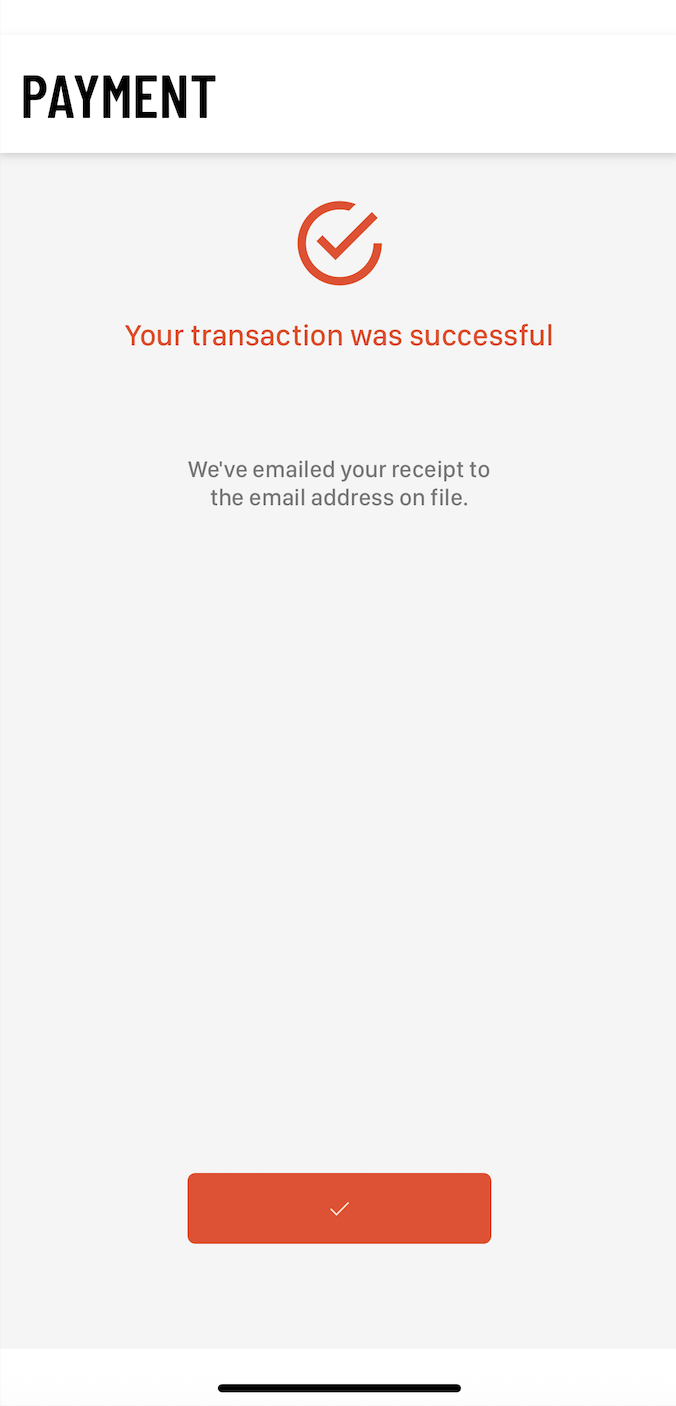
Was this article helpful?
That’s Great!
Thank you for your feedback
Sorry! We couldn't be helpful
Thank you for your feedback
Feedback sent
We appreciate your effort and will try to fix the article